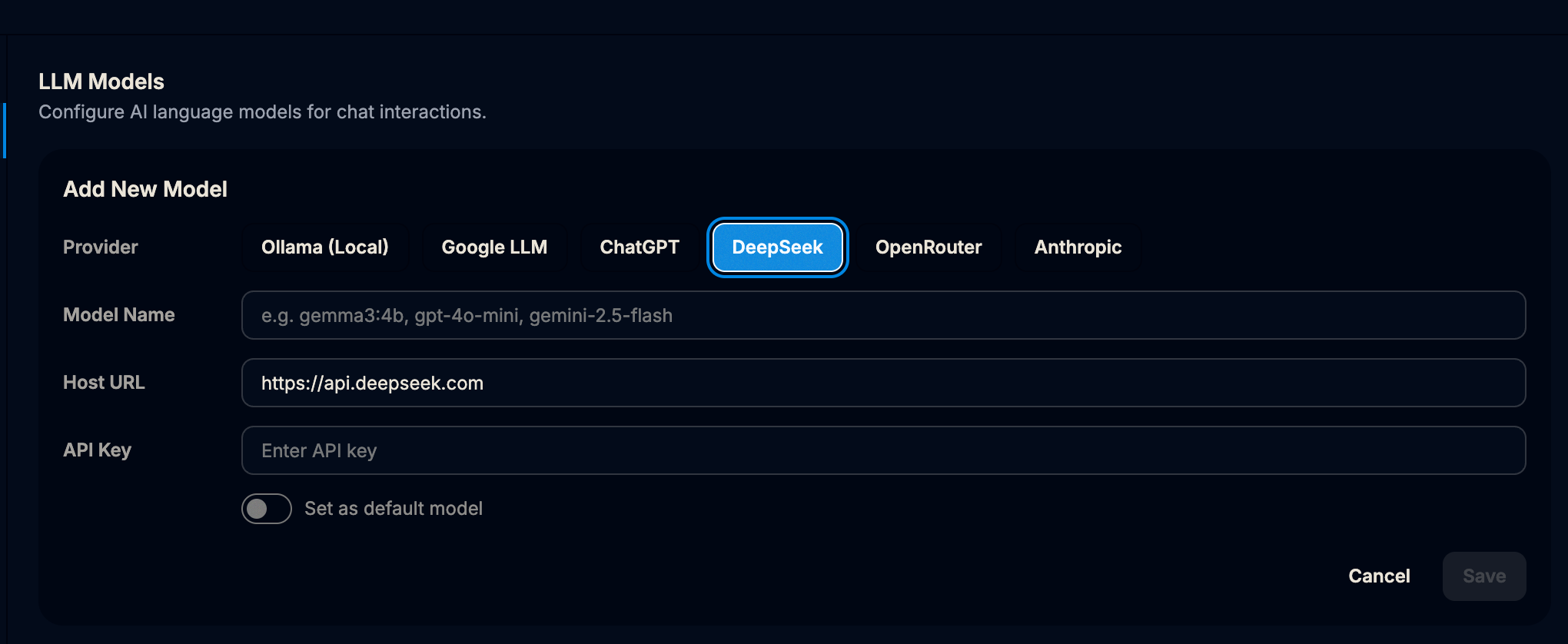
Master Your AI Models.
Follow our comprehensive guides to generate API keys and connect the world's most powerful AI models to Dhwani Note Taking.
Configure Gemini.
Follow these simple steps to generate your API keys and connect Google's powerful Gemini models to Dhwani Note Taking.
1. Generating Key and Selecting LLM Model
Start by securing your API key from Google AI Studio and configuring your preferred LLM.
Access Google AI Studio
Go to aistudio.google.com and click on Get API Key from the left navigation menu.
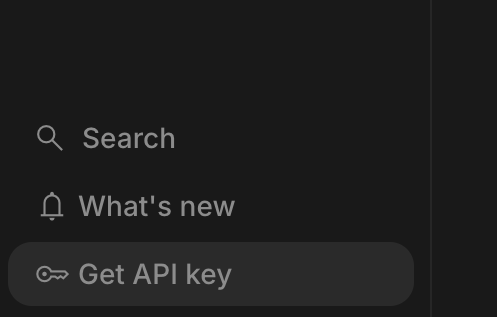
Create API Key
Click on the Create API Key button, and from the dropdown, select or create a new project.
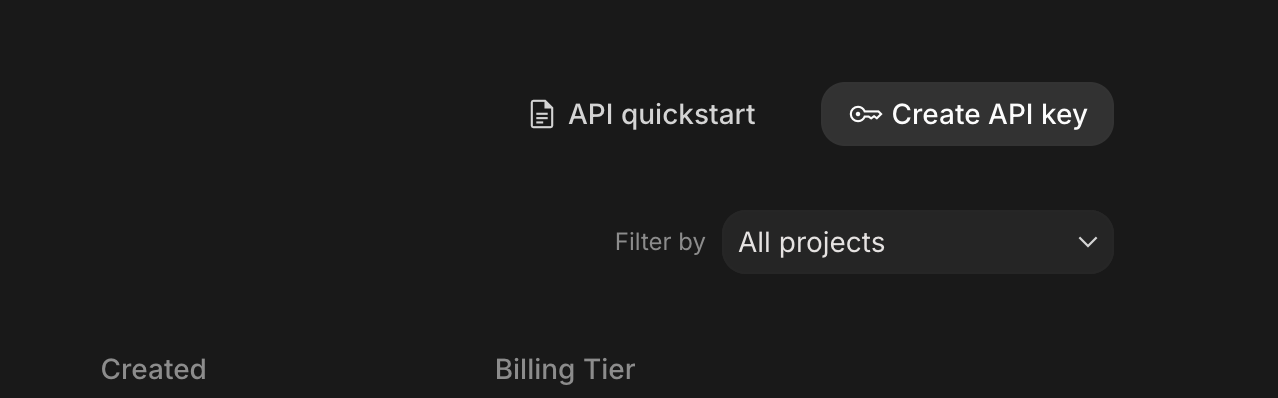
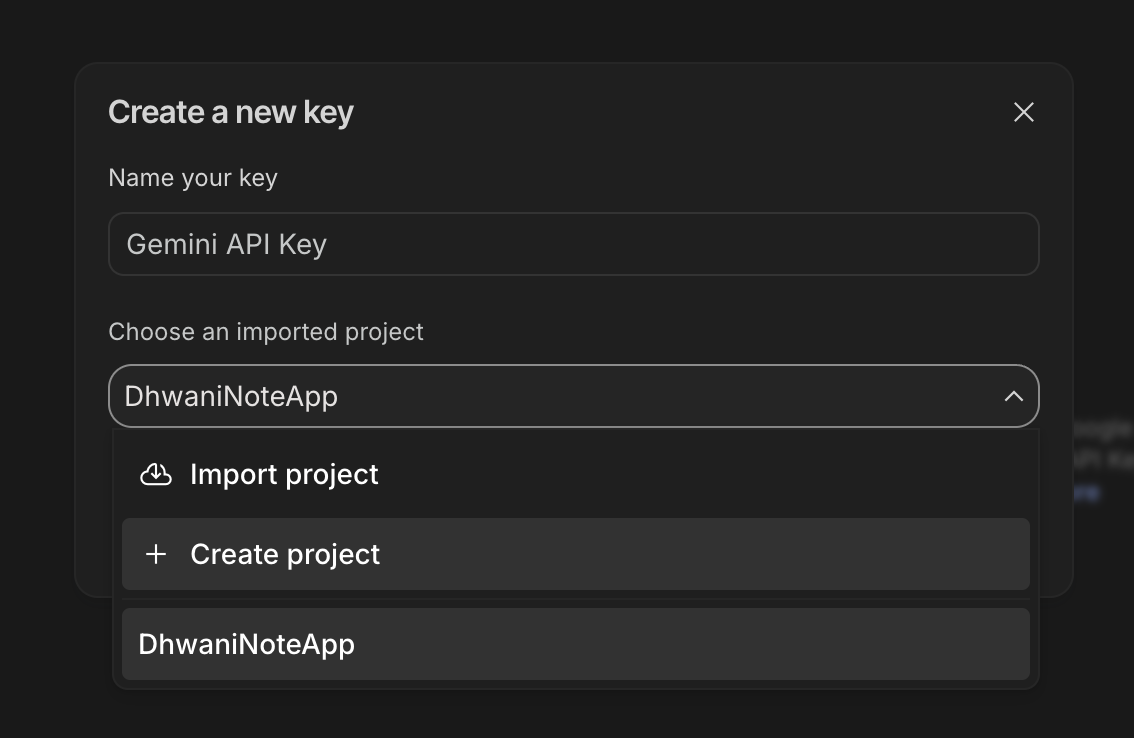
Copy the Key
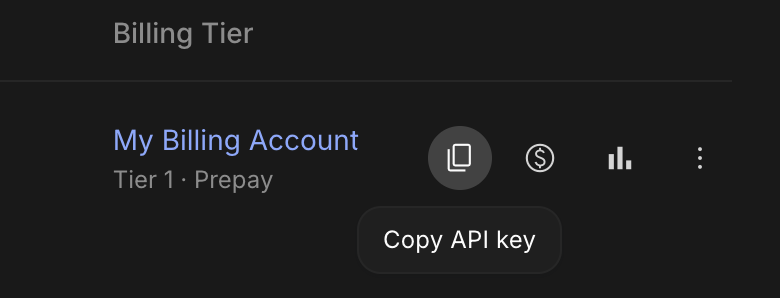
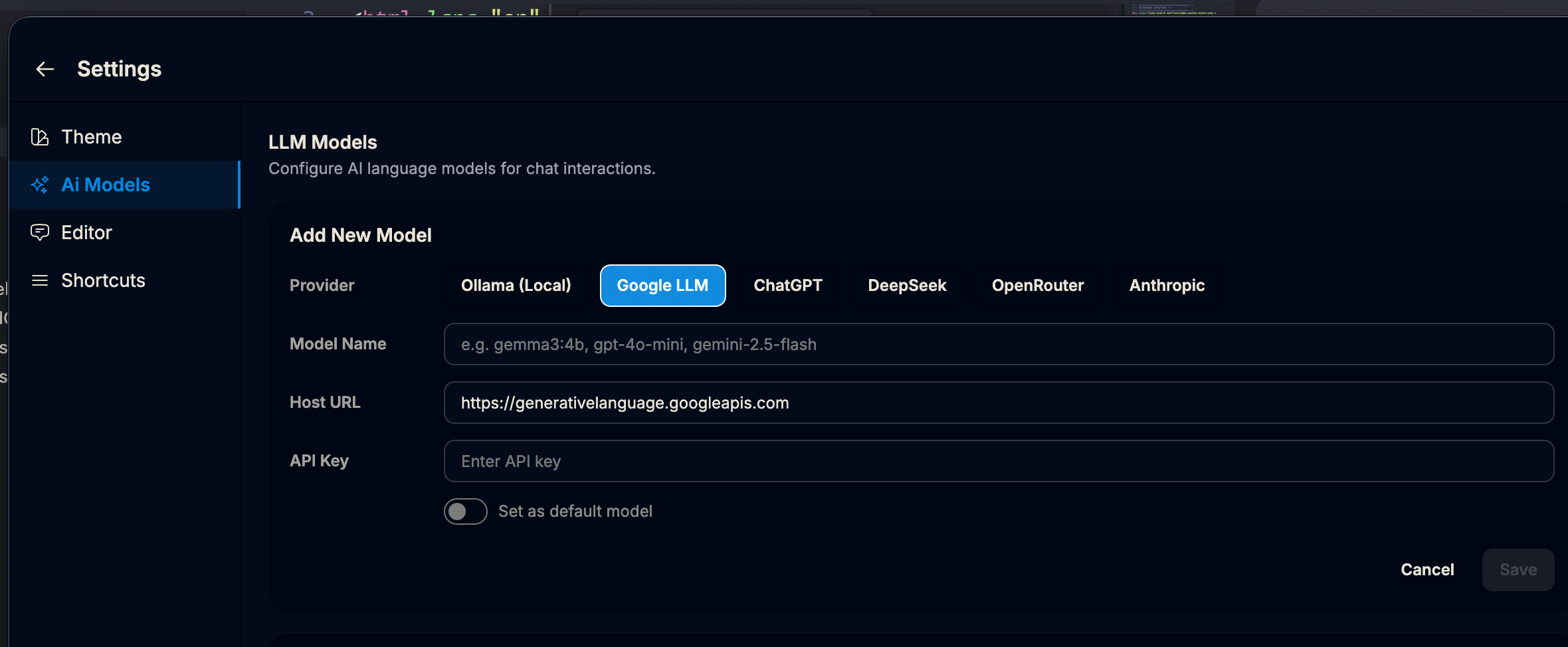
Once generated, copy the key. Open Dhwani Note Taking, navigate to Settings > AI Model, and click on Google to paste your API key.
Select Your Model
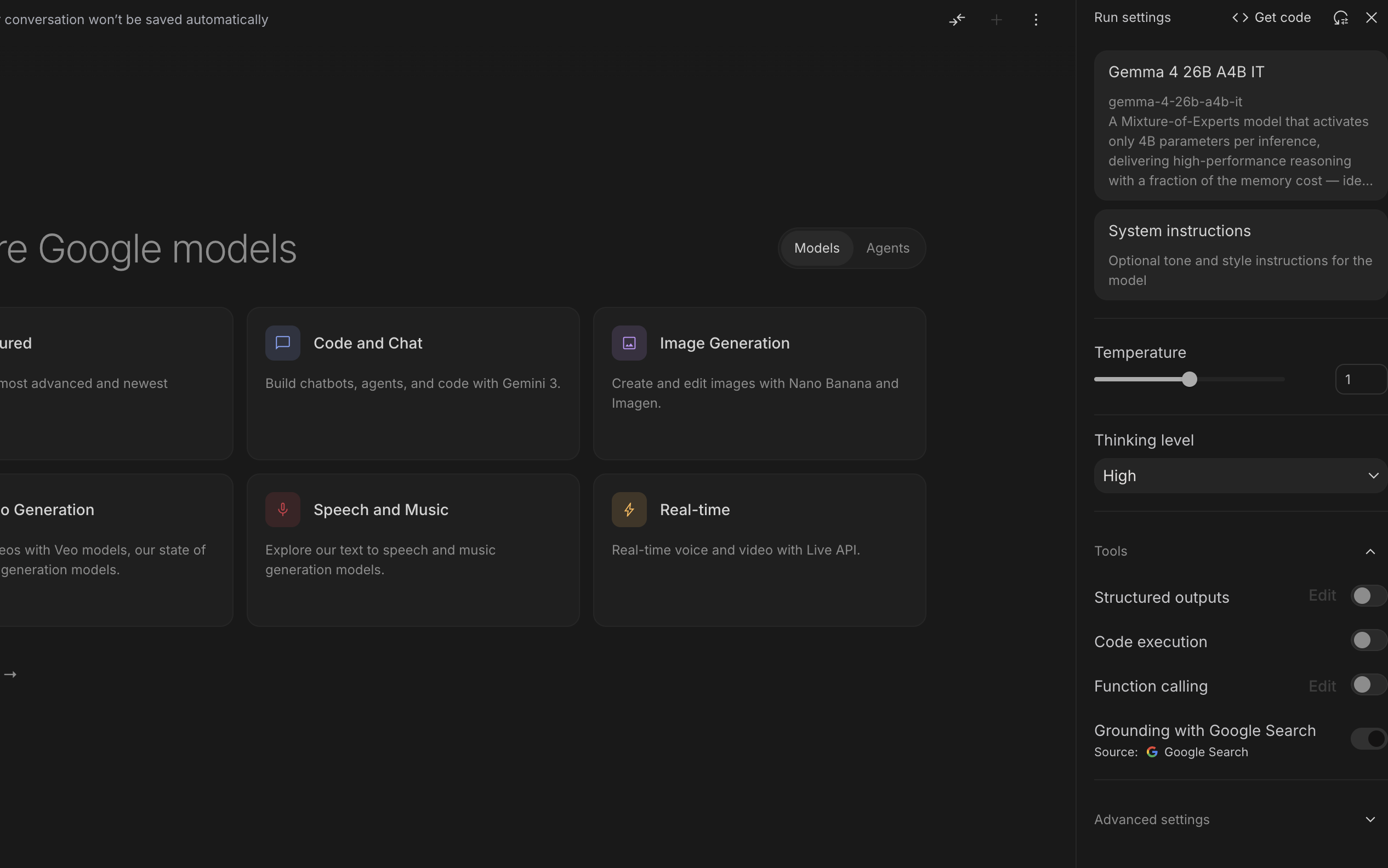
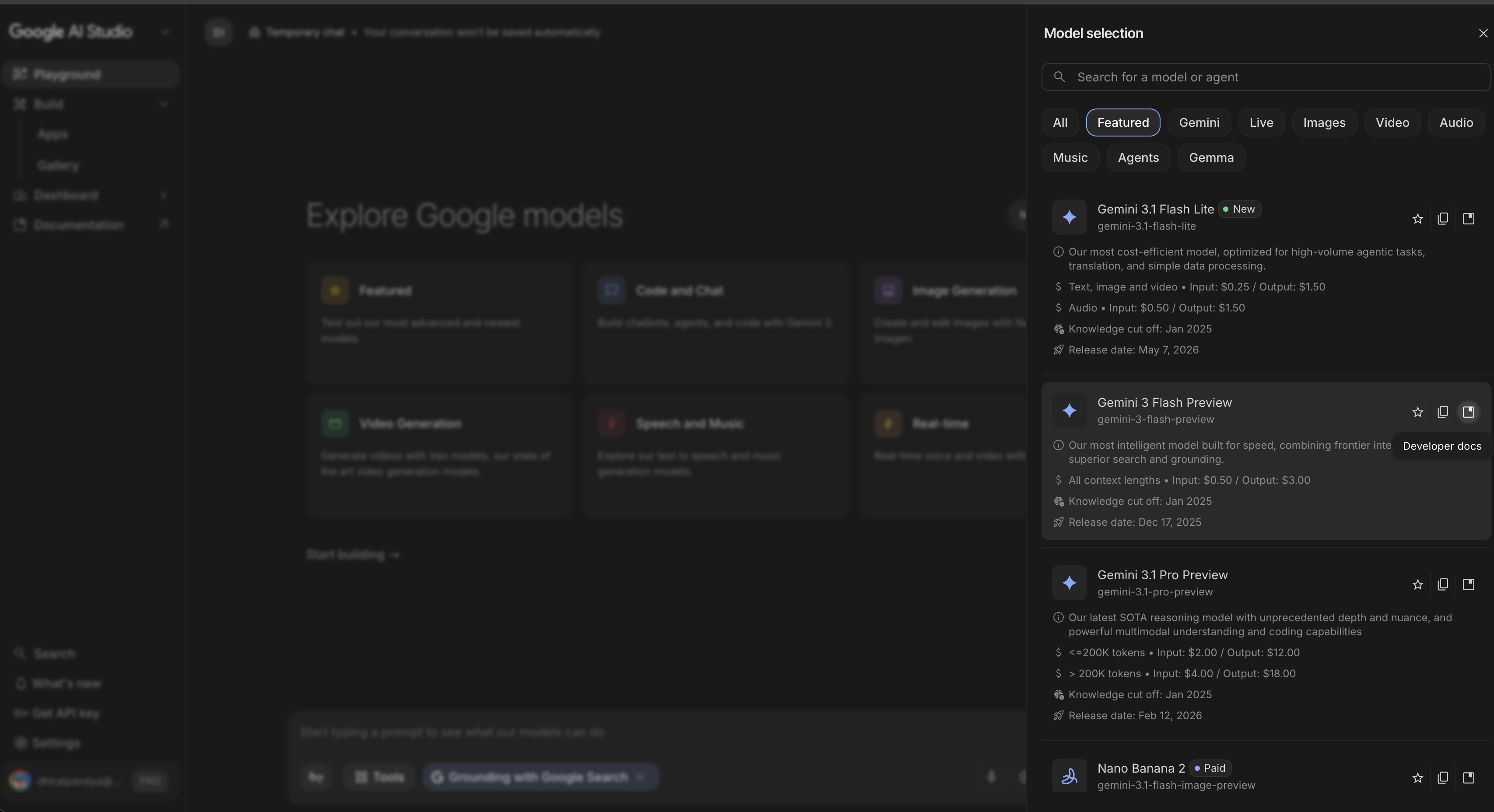
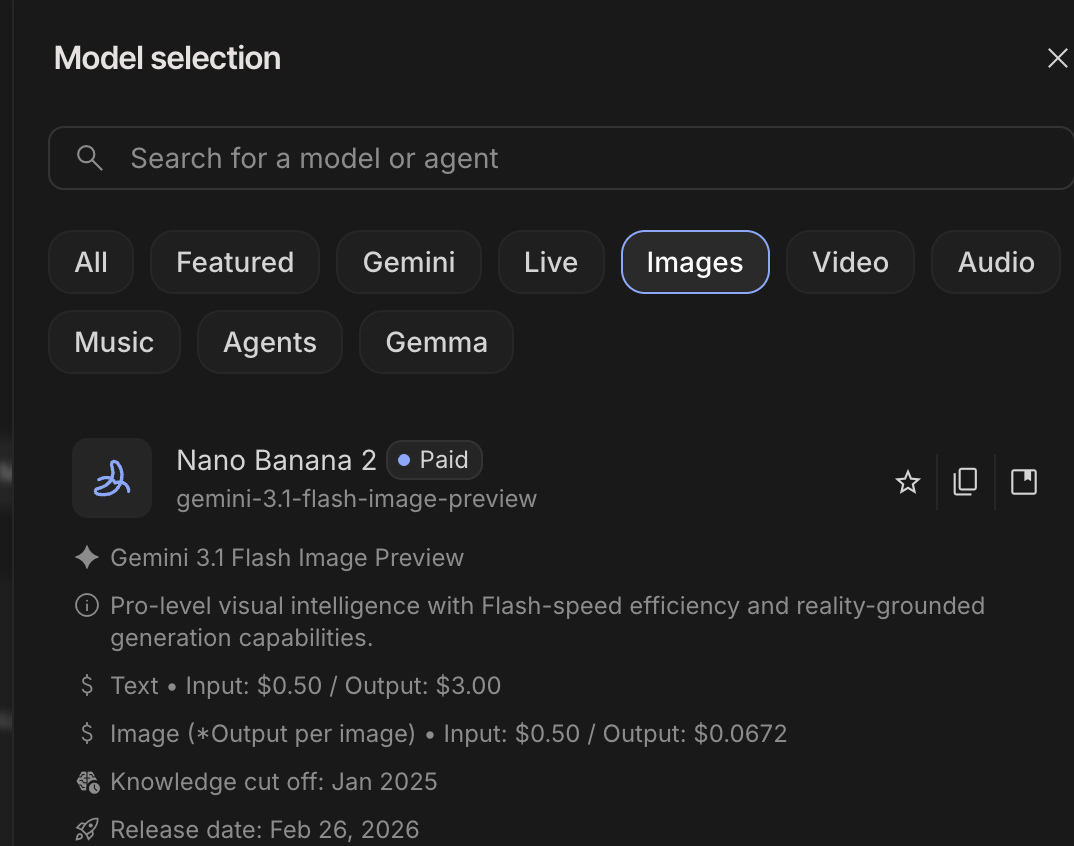
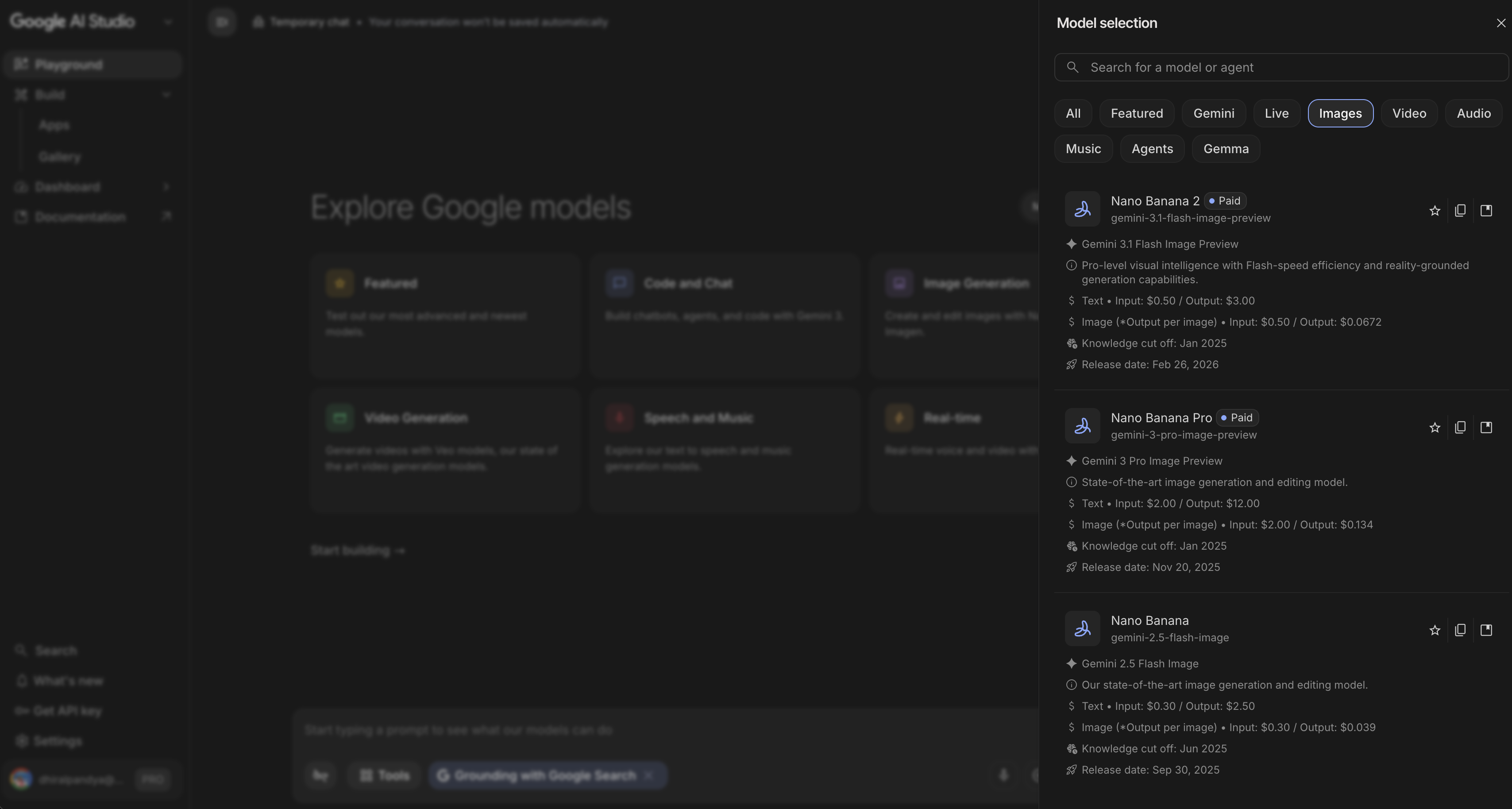
Go to New Chat, click on the model dropdown on the right navigation, and select your model. If you are using a free account, select a Flash model like gemini-1.5-flash-preview.
Recommendation: Gemini Flash is the most versatile model for day-to-day tasks. It's fast, reliable, and perfectly suited for typical Dhwani workflows.
Note: If you would like to add credit to use premium models (like Pro), go to Billing and add a minimum of $10.
Configure OpenAI.
Follow these simple steps to generate your API keys and connect OpenAI's industry-leading models to Dhwani Note Taking.
Model Maturity Warning
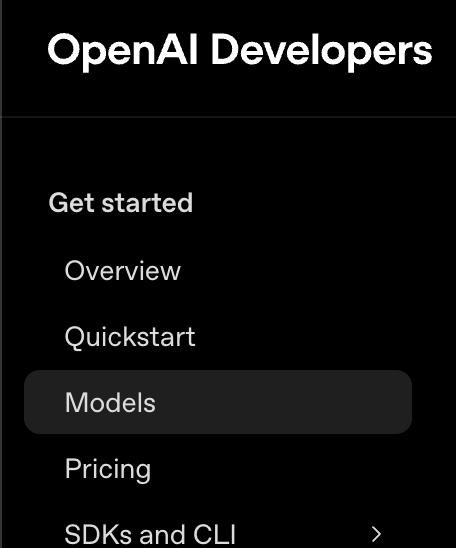
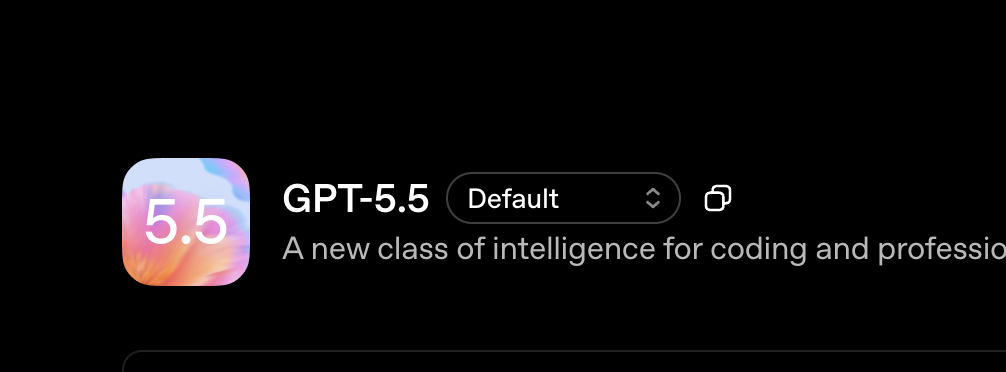
During our testing we found that OpenAI's 5.4 nano and mini models sometimes hallucinate and lose context. They are less mature at following strict instructions and using tool calling. For the best experience, we recommend using the 5.4 (original) or 5.5 series models.
Billing Requirement
Unlike Gemini, OpenAI does not provide a free tier for API access. A minimum of $10 pre-paid credit is required on your OpenAI account to use their models.
1. Generating Your API Key
Start by securing your API key from the OpenAI platform.
Access API Keys
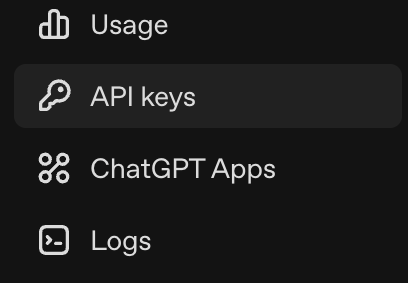
Go to platform.openai.com/home and click on API Keys from the left navigation menu.
Create New Secret Key
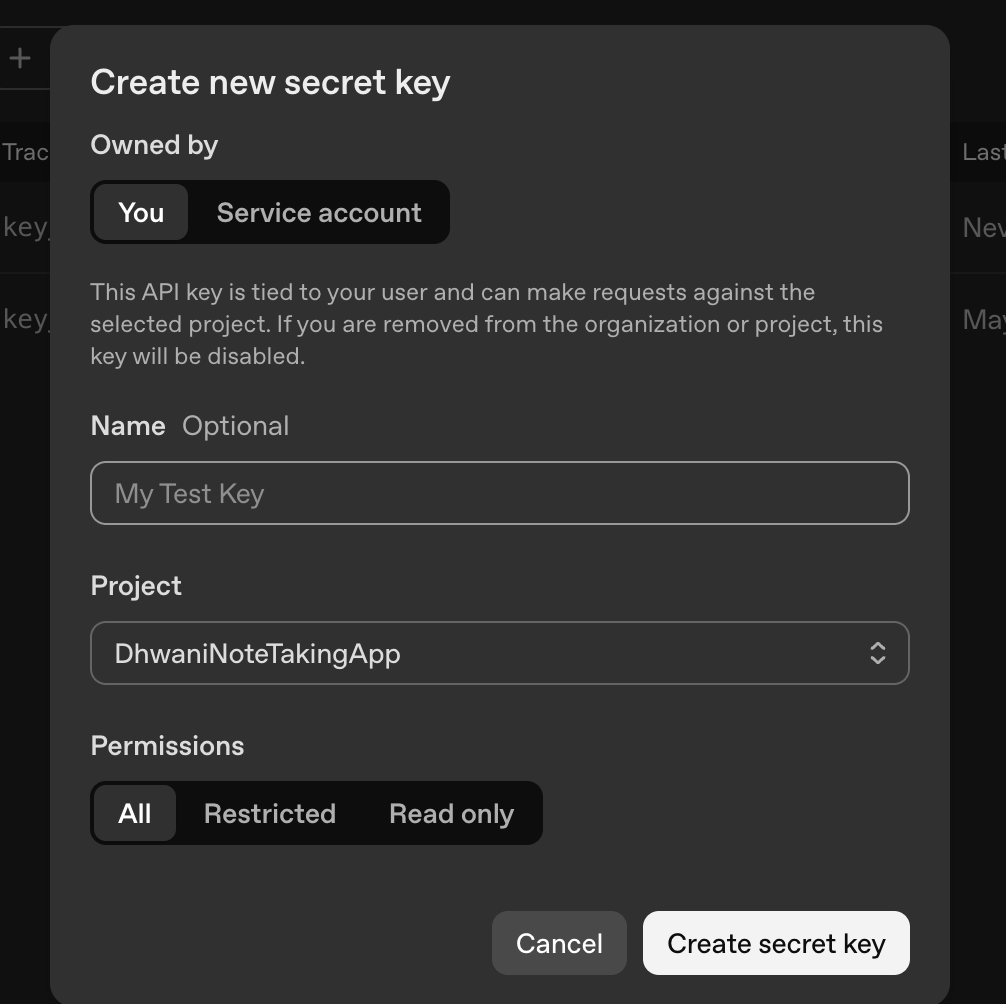
Click on the Create new secret key button. In the resulting dialog, enter a descriptive key name and generate the key.

Add Key to Dhwani
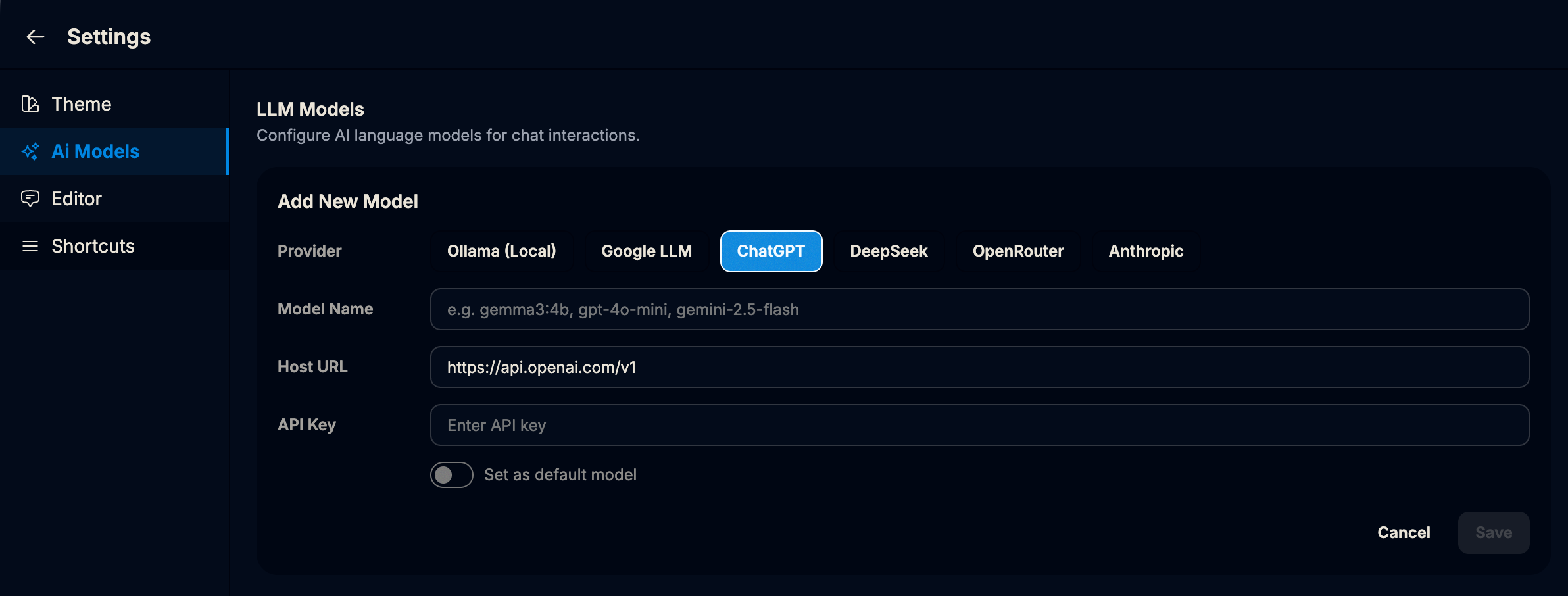
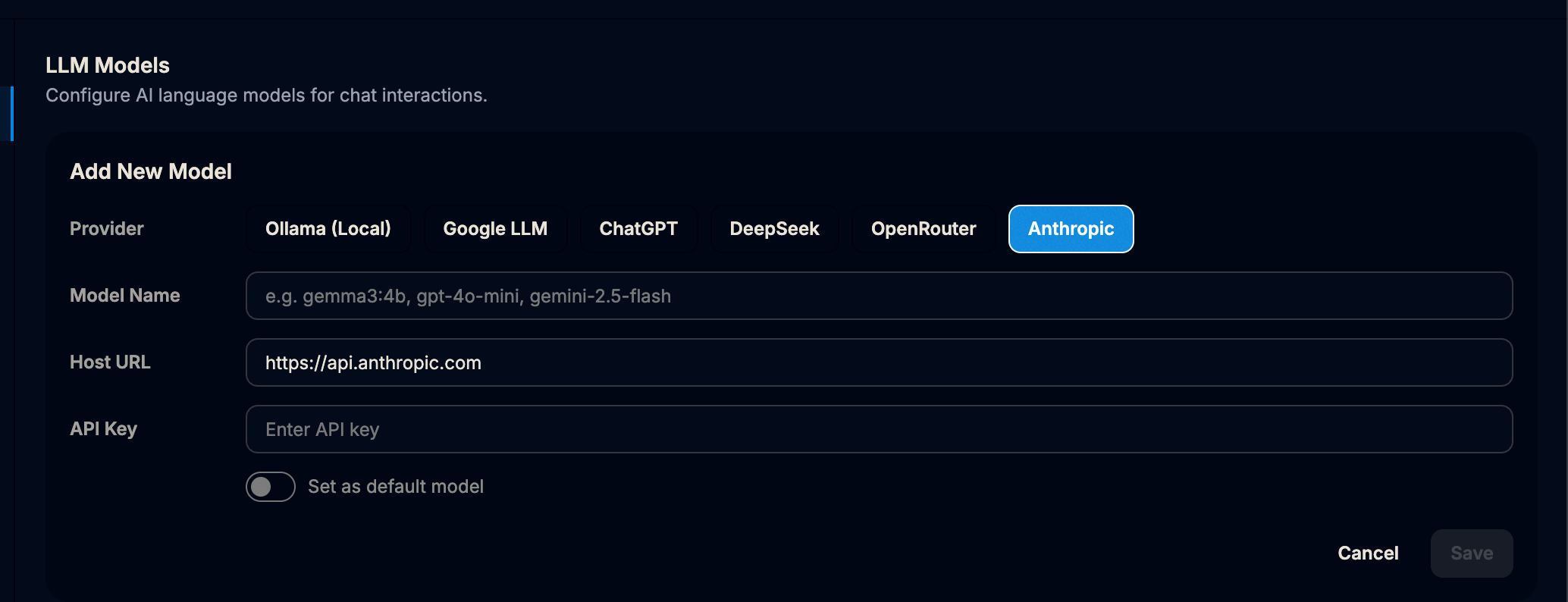
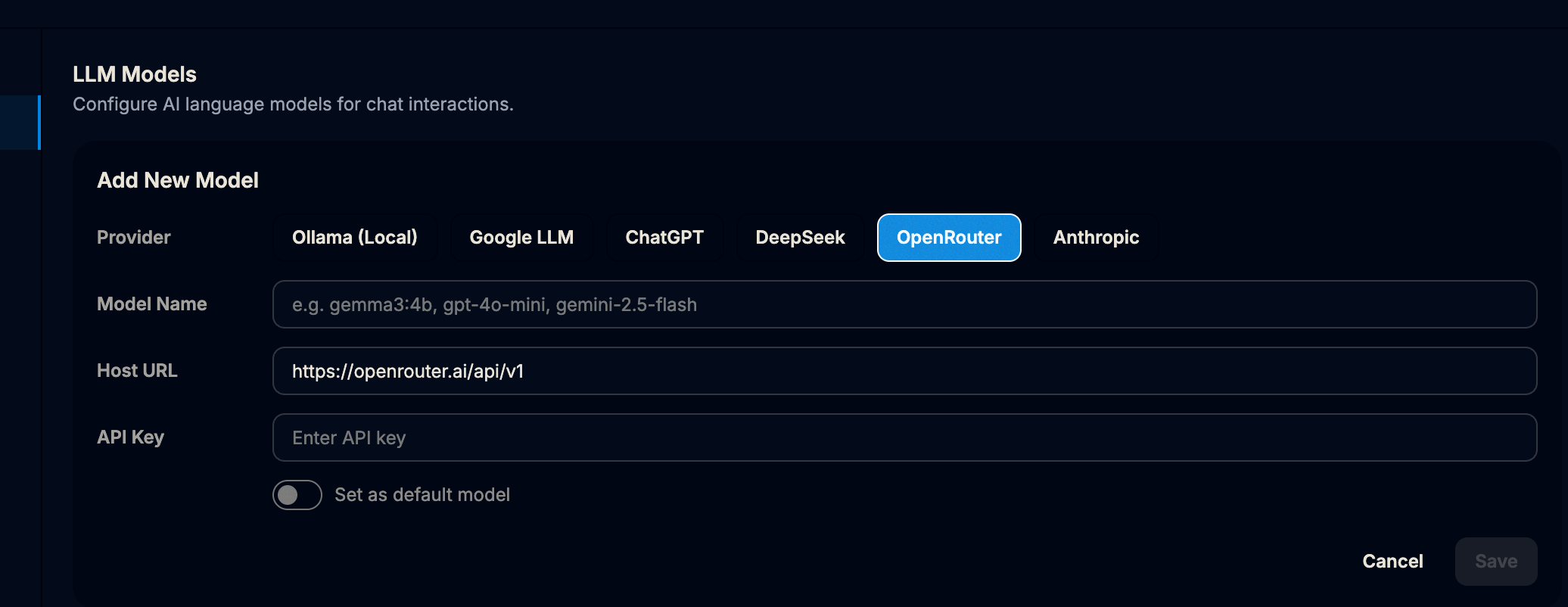
Once generated, copy the key immediately (you won't be able to see it again). Open Dhwani Note Taking, navigate to Settings > AI Model > Add new model, select ChatGPT, and paste your API key.
Configure Anthropic.
Follow these simple steps to generate your API keys and connect Anthropic's powerful Claude models to Dhwani Note Taking.
Programming & Reasoning Powerhouse
Anthropic's Claude models are exceptionally strong at programming, software development, and coding-related reasoning tasks. They are highly recommended for technical note-taking, complex instruction following, and logical assistant chat.
Budget-Friendly Startup
Unlike other premium providers, Anthropic allows you to start your cloud workspace by depositing a minimum of just $5 pre-paid credit to start generating API calls.
1. Generating Your Anthropic API Key
Secure a personal API token to enable Claude inside your Dhwani workspace.
Access the Console Dashboard
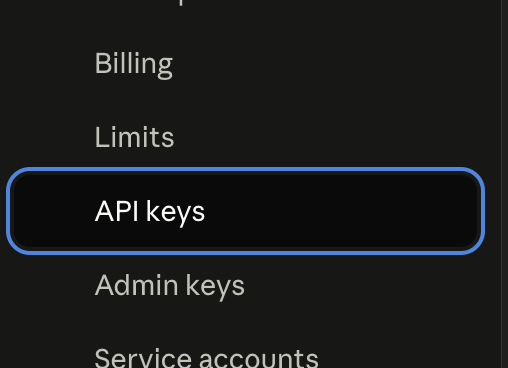
Go to platform.claude.com/dashboard. Sign in or create a developer account, and navigate to the API Keys tab on the left sidebar.
Create API Key
Click the Create Key button located in the top-right corner of the keys table.
Label and Copy the Key
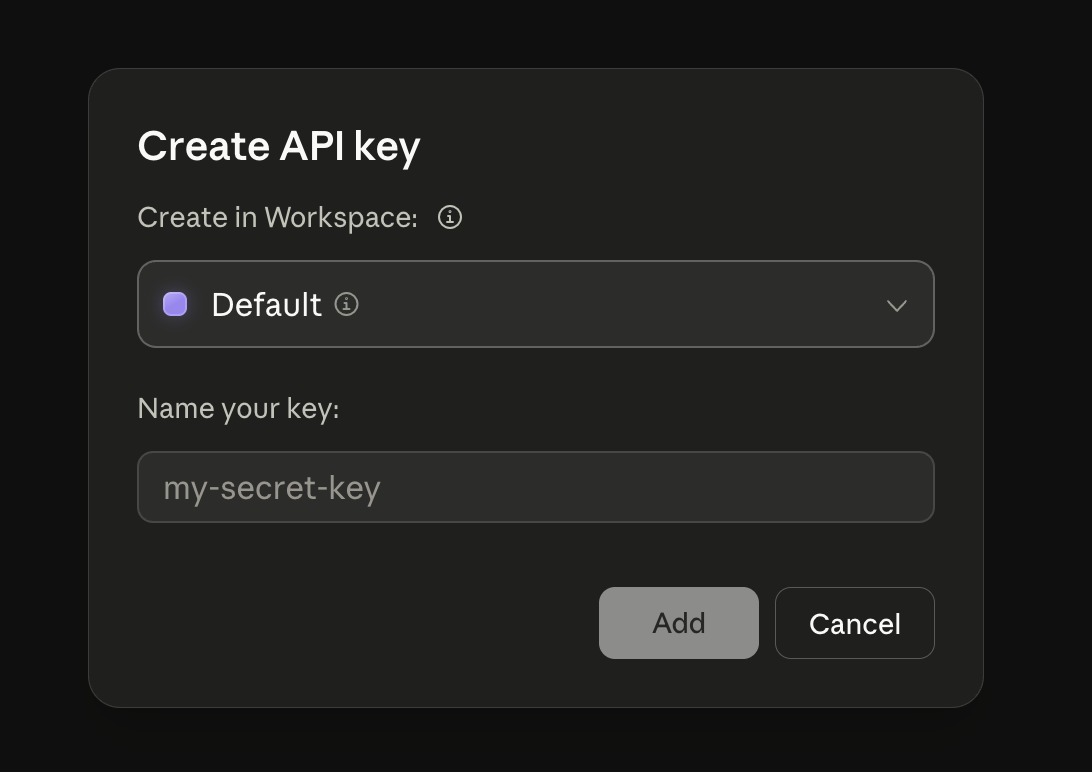
In the modal dialog, provide a name for your key (e.g. Dhwani note-taking app) and click generate. Ensure you copy the key immediately as it will be hidden forever afterwards.
Configure Ollama.
Follow these simple steps to set up Ollama locally and run powerful AI models entirely offline for maximum privacy and zero cost.
Local & Offline Privacy
Ollama runs AI models directly on your hardware. Everything stays strictly local—meaning 100% data privacy, no cloud subscriptions, zero data transmission, and free usage forever.
Hardware Recommendations
For Apple Silicon Macs (M1/M2/M3), 7B or 8B parameter models offer the best balance of speed and logic. Larger models (e.g. 70B parameter models) run slower and require 32GB+ of unified memory.
1. Downloading & Installing Ollama
Download and install the native local model execution engine for Mac.
Download for macOS
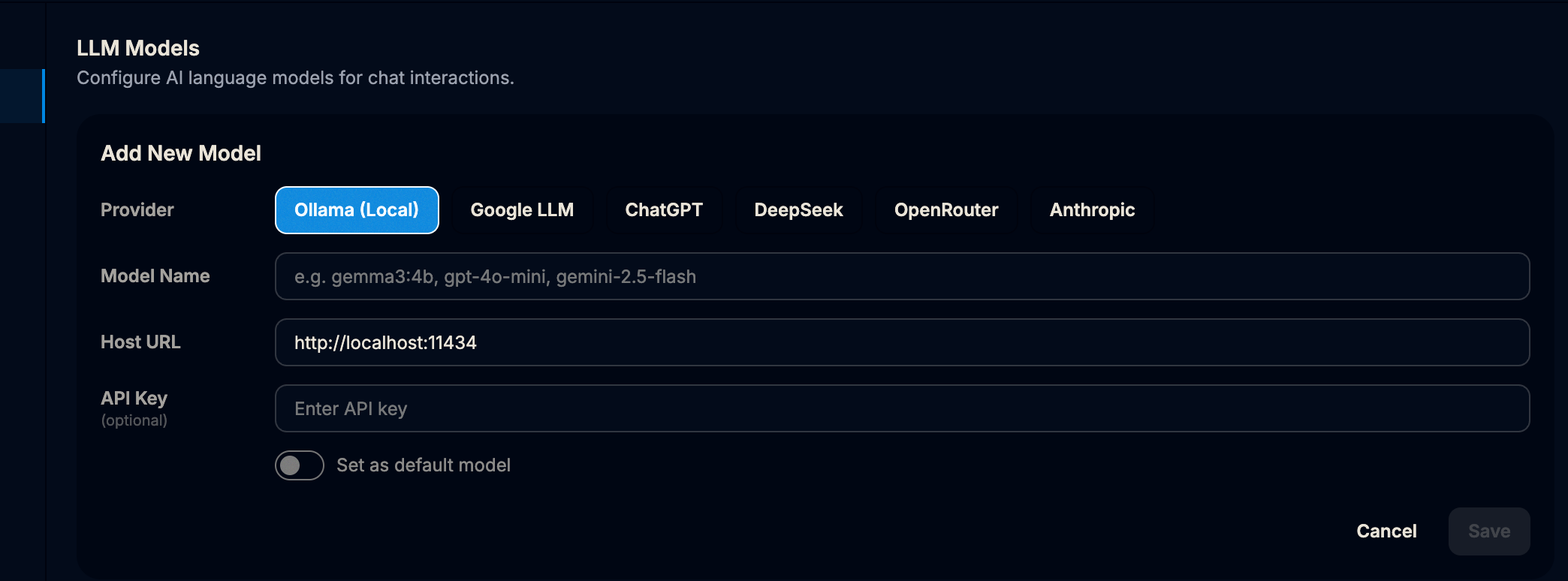
Go to ollama.com/download/mac. Download the zip archive, extract it, drag Ollama to your Applications folder, and open it. Ollama will reside silently as a helper inside your macOS menu bar.
macOS Native Client
Fast, local, optimized specifically for metal graphics acceleration on macOS Silicon.
Configure OpenRouter.
Follow these simple steps to generate your API keys and access a unified API for hundreds of leading AI models via OpenRouter.
A Unified Marketplace Endpoint
OpenRouter serves as an AI "universal remote". Instead of configuring and funding separate accounts for Google, OpenAI, Anthropic, and Llama, you only deposit pre-paid credits to your OpenRouter account and access hundreds of models through a single API gateway.
Recommended Image Generation
During our internal testing on dynamic visual board nodes, we found that sourceful/riverflow-v2-fast offers a highly competitive balance of image generation speed, cost efficiency, and aesthetic clarity.
1. Generating Your OpenRouter API Key
Acquire a secure routing token to enable multi-provider AI processing inside Dhwani.
Access Keys in your Workspace
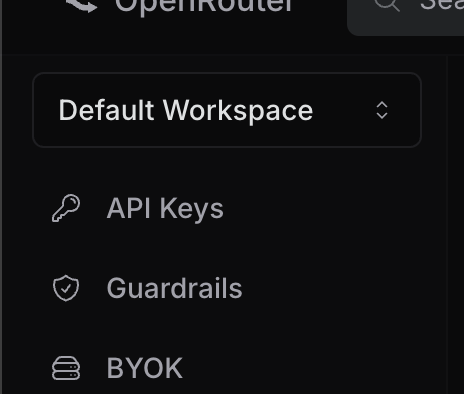
Navigate to openrouter.ai/workspaces. Log in or create an account, then click on API Keys from the left navigation menu.
Create a New Secret Key
Click the New Key button situated at the top right corner of the API Keys panel.

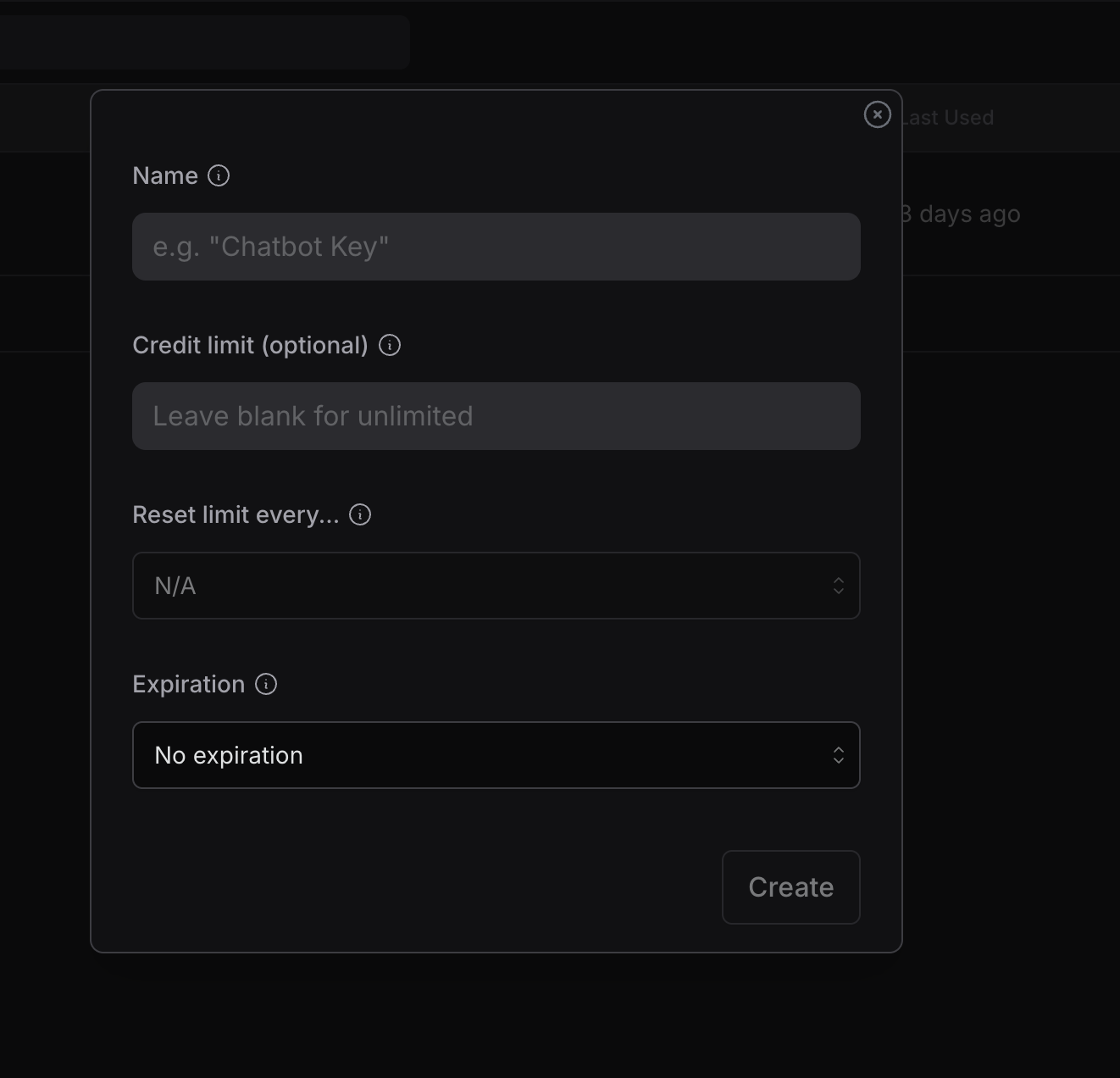
Label and Generate Key
Enter a key name (e.g. Dhwani Note Taking) in the create key dialog and generate. Immediately copy your newly generated API key, as it will not be displayed again for security reasons.
Configure DeepSeek.
Follow these simple steps to generate your API keys and connect DeepSeek's powerful reasoning and chat models to Dhwani Note Taking.
Unbeatable Value Proposition
DeepSeek V4 Flash and Pro are among the absolute best models on the market in terms of raw cost-to-performance value. During our testing, performance felt highly comparable to Gemini Flash and Pro. Note that deep reasoning queries (especially on DeepSeek V4 Pro) might feel slightly slower, but they offer phenomenal depth for a fraction of the cost.
Text-Only AI Scope
DeepSeek does not provide separate vector embedding or image generation API endpoints. For text-based chat and logical reasoning, configure DeepSeek, and delegate vision and embeddings to Gemini or a local Ollama server.
1. Generating Your DeepSeek API Key
Secure a personal developer token to enable DeepSeek models inside Dhwani.
Create Key from Dashboard
Go to platform.deepseek.com/api_keys. Sign in or register your account, and click the Create new API Key button. Immediately copy your key and save it securely.
Pricing & Speed Details: Review active token costs and rate limits on the official pricing overview page.
Secure API Key
Fund your account balance and generate key tokens to enable high-speed endpoints.